Browsing and producing records
Open a topic and select Records. Reading here never commits offsets or joins a consumer group, so it can't affect your consumers.
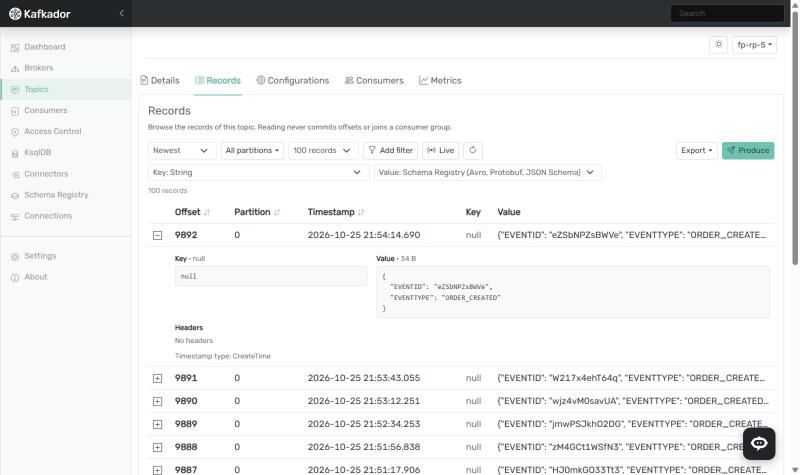
Choose what to read
| Control | Options |
|---|---|
| Position | Newest, Oldest, From offset or From time |
| Partitions | All partitions, or the ones you tick |
| Count | 50, 100, 250 or 500 records |
Decode keys and values
Choose how to read the key and the value separately:
- String or JSON
- Int, Long, Float or Double
- Bytes (Base64) or Bytes (Hex)
- Schema Registry, for Avro, Protobuf and JSON Schema
Schema Registry is picked automatically when the topic has a subject. It needs Schema Registry to be set up.
Filter
Select Add filter to add up to 10 filters. Each one has:
- a field: key, value or headers, or just one of them
- a test: contains, does not contain or equals
- the text to look for
A filtered read stops at a scan limit of 10,000 records. If you see "stopped at the scan limit", choose fewer partitions or a later start to look further.
Follow new records live
Select Live to see records as they're produced, and Stop live to finish. Each live view holds a thread and a Kafka consumer on the server, so views are limited to:
- 3 per session
- 20 in total
- 30 minutes each
You can change these limits in the configuration.
Export
Use Export to download the records you're viewing as CSV, JSON or XML.
Produce a record
- Select Produce.
- Choose a Partition, or leave it on Any (picked by key).
- Choose the Key serde and Value serde.
- Enter the Key, Value and Headers. Headers are a JSON object, such as
{"trace-id": "abc"}. - Select Produce message.
An empty key sends a null key. An empty value sends a null value, which is a tombstone on compacted topics.
To send several similar records, turn on Keep contents after producing a message.